To share Instagram posts to Facebook automatically, open the Instagram app, go to your profile, tap Menu, then Accounts Center, Connected experiences and Sharing across profiles. Pick your Instagram account to share from and your Facebook profile or Page to share to, and turn on Your Instagram posts. Every new Instagram post then also appears on Facebook.
Key takeaways
- Automatic sharing is a setting in Accounts Center: Sharing across profiles, then Your Instagram posts.
- For a single post, tap Also share on… before posting and turn on your Facebook profile or Page.
- The setting is in the Instagram app for Android and iPhone; shared posts appear in your Facebook Feed and profile.
- The Facebook audience for shared posts can differ from your usual Facebook audience, and you can change it.
On this page
How do you share Instagram posts to Facebook automatically?
In the Instagram app for Android or iPhone, per Instagram’s help centre:
Open your profile
Tap your profile picture in the bottom right, then Menu in the top right.
Go to Accounts Center
Tap Accounts Center, then Connected experiences, then Sharing across profiles. Your Facebook account has to be in Accounts Center first.
Choose the accounts
Tap the Instagram account to share from, then the Facebook profile or Page to share to.
Turn it on
Switch on Your Instagram posts. From now on, every post you share on Instagram also goes to Facebook.
How do you share just one Instagram post to Facebook?
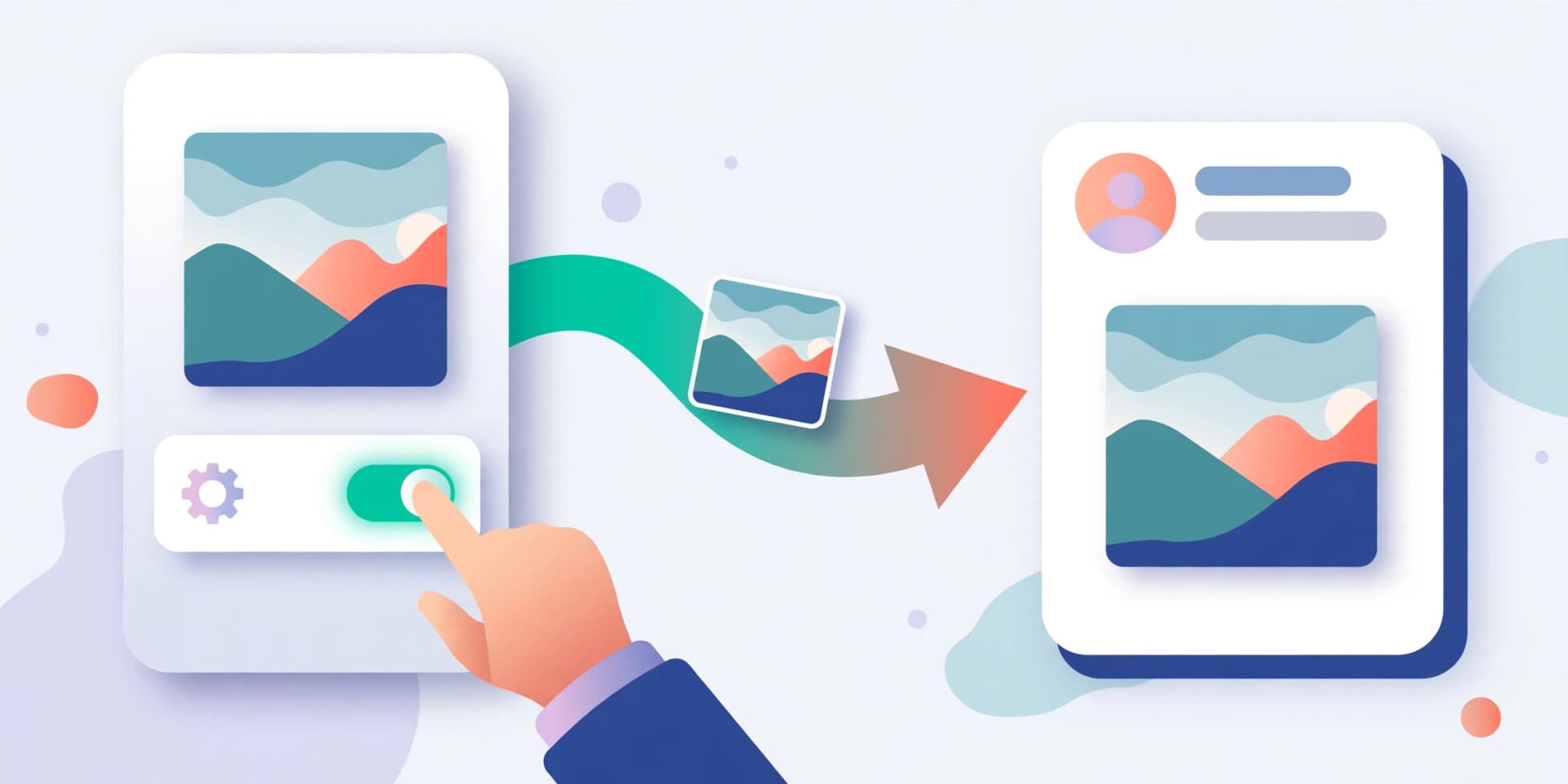
While creating the post, before you tap Share, scroll down and tap Also share on…, turn on the toggle next to your Facebook Page’s name, tap Back, then Share. The post goes to both, and the setting does not change your other posts.
What happens when an Instagram post is shared to Facebook?
It appears as a post in your Facebook Feed and on your profile, with the same caption and media. Its audience on Facebook may be different from the audience of posts you create on Facebook; Instagram lets you match them to your Facebook default, and you can change a post’s audience on Facebook after it is shared. To turn automatic sharing off, switch off Your Instagram posts in the same Accounts Center screen.
When is scheduling a Facebook version better than automatic sharing?
When Facebook should get its own words or its own time. Automatic sharing sends the same post at the same moment; a scheduler publishes a separate Facebook version:
| Automatic sharing | Scheduling both in SkedCast | |
|---|---|---|
| Caption | The same as on Instagram | Its own version per platform |
| Timing | The moment you post on Instagram | Each at its own scheduled time |
| Plan ahead | Only when the Instagram post goes out | Weeks of posts, in one calendar |
| Approvals | None | Review before anything publishes |
| Other networks | Facebook only | All 11 platforms from one post |
How do you schedule one post to Instagram and Facebook?
With SkedCast: connect your Instagram account and Facebook Page, write the post once, adjust the Facebook version (a link, a longer caption, different hashtags), and set a time for each; SkedCast publishes both. The cross-posting guide covers the formats in detail, and the Instagram scheduler and Facebook scheduler list every option.

Sources
FAQ
- How do I make my Instagram posts share to Facebook automatically?
- In the Instagram app: Profile, Menu, Accounts Center, Connected experiences, Sharing across profiles; choose the accounts and turn on Your Instagram posts.
- Why is my Instagram not sharing to Facebook?
- Usually because the Facebook account is not in Accounts Center, the setting is off, or a different account was chosen to share to. Check Sharing across profiles; the setting is only in the Instagram app for Android and iPhone.
- Can I share only some Instagram posts to Facebook?
- Yes. Leave automatic sharing off and, for each post you want on Facebook, tap Also share on… before posting and turn on your Page.
- Does a shared Instagram post look the same on Facebook?
- It uses the same caption and media and appears in your Facebook Feed and profile. Its audience can differ from your Facebook default, and you can change it.
- Can I post different captions to Instagram and Facebook?
- Not with automatic sharing, which copies the post. Schedule both from SkedCast instead, with a version for each platform.