AI image generator for social media posts
The Image Studio is the AI image generator for social media inside SkedCast AI. Describe a picture, confirm, and it makes post images in your client’s Brand Kit look, in the shape each network needs, saved to the Content Library and ready to schedule. It is on every plan, Free included.Updated
Key takeaways
- The Image Studio makes social media images from a written description, inside SkedCast AI, on every plan.
- Each image follows the client’s Brand Kit and comes in the shape the network needs: square, portrait, landscape or vertical.
- Edit an image in plain words, ask for variations, or reshape it, without starting again.
- Every image is saved to the Content Library and goes into a post with one click.
- SkedCast marks AI-made images in their file data and switches on the AI label where a network’s publishing API has one.
What is the SkedCast Image Studio?
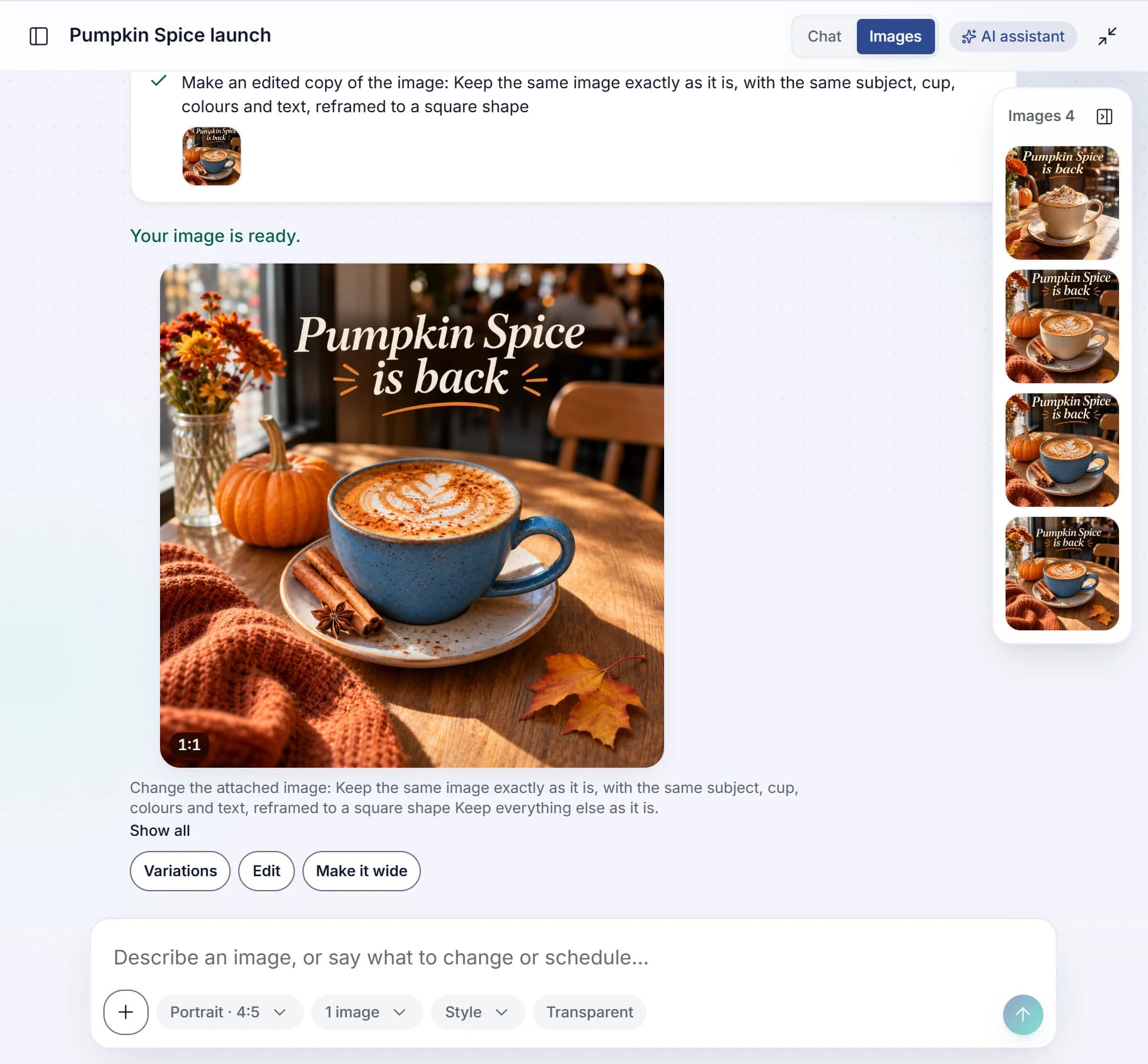
The Image Studio is an AI image generator for social media that lives inside SkedCast AI, the assistant in the SkedCast app. Open SkedCast AI, switch from Chat to Images, and describe the picture you want. SkedCast AI shows what it is about to make, you confirm, and the finished image appears in the conversation a little later. It is built for the people who already plan and publish posts in SkedCast: agencies running many clients, in-house teams and creators.
Images is a mode of the full SkedCast AI page, so it has room for the conversation, a list of your image sessions and a panel of every image the session has made. Each session keeps its own conversation, so you can come back to a campaign tomorrow and carry on where you left off. Sessions can be renamed, searched and deleted; deleting a session never deletes its images, which stay in the library.
How do you make an image for a social media post?
You describe it, check the card, and confirm. Nothing is made until you confirm, so a typo or a wrong shape costs you nothing. The steps, in the order you meet them:
- Open SkedCast AI and choose Images. Pick the client the image is for, or the whole workspace.
- Write a description of up to 16,000 characters. Choose the shape, how many images (up to 4 at once), a style, and whether the background should be transparent.
- Add up to 4 pictures of your own as references if the image should show a real product, place or look.
- Read the card SkedCast AI shows: what will be made, in which shape and how many. Press Confirm.
- Leave the page if you like. The image keeps being made, and it is waiting in the session when you come back.

Which shapes and sizes can the AI image generator make?
Five shapes, chosen before you confirm. Each one is made at its own size by the model rather than cropped from a square, so the subject is framed for the shape from the start. Every image is a PNG file, and the transparent option gives a real see-through background for stickers and cut-outs.
| Shape | Ratio | Pixels | Where it is usually posted |
|---|---|---|---|
| Square | 1:1 | 1,254 × 1,254 | Feed posts on most networks, profile and product tiles |
| Portrait | 4:5 | 1,122 × 1,402 | Instagram and Facebook feed posts that fill more of the screen |
| Landscape | 16:9 | 1,672 × 941 | YouTube thumbnails, wide link images and banners |
| Vertical | 9:16 | 941 × 1,672 | Stories and full-screen covers for Reels and Shorts |
| Wide | 3:2 | 1,536 × 1,024 (transparent only) | Stickers and cut-outs with a see-through background |
If you need the same picture in another shape later, you do not have to describe it again: ask for it in the session, or press the reshape button under the image. To check what each network asks for, see the social media image sizes guide or the aspect ratio calculator.

Which image styles can you choose?
A style is a short instruction added to your description, so you do not have to find the right words for a look every time. Leave it on No style and your description decides everything.
| Style | What it asks for |
|---|---|
| No style | Nothing added: your description alone decides the look |
| Photo | a natural, realistic photograph. |
| Product shot | a clean studio product photograph, soft even light, simple background. |
| Illustration | a flat, friendly illustration. |
| 3D | a soft 3D render. |
| Watercolour | a watercolour painting. |
A style is a starting point, not a cage. A description that says “black and white” or “shot from above” still wins, and the client’s Brand Kit image style is added on top, so a client with a house look keeps it whichever preset you pick.
How do you edit an AI image without starting again?
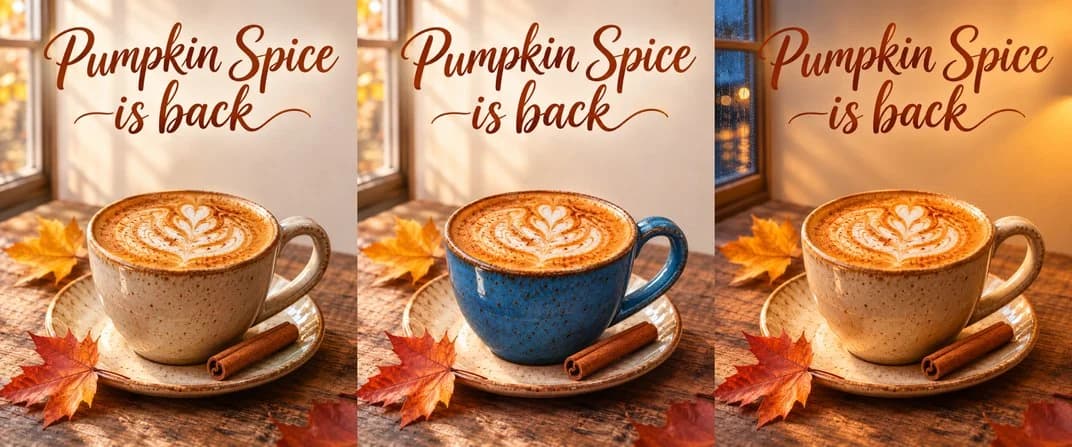
Say what to change. Under each finished image are buttons for the next step, and the message box takes plain instructions such as “make the cup blue” or “make it a rainy evening”. The edit keeps everything you did not mention, so the layout, the headline and the subject stay put.
- Edit puts the image in the box so your next message changes it.
- Variations makes more images like it, for when you like the idea but not the details.
- Make it square or Make it wide remakes the same image in another shape.
- Try again appears when an image could not be made, and asks once more.
Can you use your own photos as references?
Yes, up to 4 per image. A reference is a picture the model looks at while it works, so the result can show the client’s real product, packaging or shop front instead of a guess. Upload one from your computer, choose one from the Content Library, or import one from Canva, Google Drive or Dropbox. An image you choose from the session to work on counts toward the same limit of 4 pictures, and the box tells you when a reference had to be taken off.
References work best when they are clear and show one thing: a product on a plain background beats a busy shelf. Say in the description what to keep from the reference (“use this bottle exactly”) and what to change (“put it on a beach at sunset”). An image you already made in the session can be a reference too, which is how a series keeps the same character or product from post to post. Canva and Google Drive files come in through the same integrations the composer uses.
How does the Brand Kit shape each AI image?
When an image is for a client, SkedCast adds that client’s Brand Kit to the request. Four parts of the Kit reach the image: the brand colours, the image style you wrote for the client, the never-show list, and the details a product must always have. So a café whose Kit says “warm light, wood, no plastic cups” gets warm light, wood and no plastic cups without anyone typing it.
Two parts of the Kit are left out on purpose. The logo is not passed, because an image model cannot redraw a real logo faithfully. Fonts are not passed either, because the model draws its own lettering. The same Kit also guides the captions SkedCast AI writes, so the picture and the words come from one brief. See the media library and Brand Kit page for how a Kit is set up.
How does an AI image become a scheduled post?
Every finished image is saved to the Content Library at once, marked as AI-made, where the whole team can find it. From the image itself you can download the file, add it to your next message, or press Use in post, which opens the composer with the image attached and the client already chosen.
In the composer it is an ordinary image: write a version of the caption per network, pick the accounts, and publish now or schedule it on the content calendar. One image can go to every account a client has through multi-account posting, and a month of images can be scheduled from a spreadsheet with bulk scheduling, using files from the library. You can also ask SkedCast AI in the same session to write the post and schedule it, and it shows a card to confirm before anything is scheduled.
Is the Image Studio a social media post maker app?
It makes the picture for a post and takes it all the way to a scheduled post, which is the part of a social media post maker app that most people spend time on. You describe the image in SkedCast AI, and the same app holds the caption, the accounts and the schedule. It makes still images, not video, so it covers the picture of a post rather than a clip.
| Step | Where it happens |
|---|---|
| Describe the picture | SkedCast AI, Images mode |
| Pick the shape for the network | Chosen before you confirm: square, portrait, landscape or vertical |
| Keep the client’s look | The client’s Brand Kit is added to the description |
| Fix or vary the image | Edit, Variations or a new shape, in plain words |
| Save it | The Content Library, marked as AI-made |
| Write the caption | The composer, with a version for each network |
| Schedule it | The content calendar, for one account or every account a client has |
Press Use in post under a finished image to open the composer with it attached. From there the post is like any other: pick the accounts, then publish now or schedule it on the content calendar. For a client with several accounts, multi-account posting sends the same image to each, and bulk scheduling places a month of images from the library.
Do AI-generated images need a label on social media?
Often, yes, and the rules are getting stricter.
What do the platforms and the EU AI Act require?
YouTube requires creators to disclose realistic content made or meaningfully changed with AI, and labels it for viewers. TikTok requires a label on AI-generated content that contains realistic images, and may add an “AI-generated” label itself when a file carries Content Credentials. In the EU, Article 50 of the AI Act, which applies from 2 August 2026, asks for AI-made images to be marked in a machine-readable way, and for deep fakes to be disclosed.
What does SkedCast set on the post?
SkedCast handles the parts it can. The copy of an AI-made image that is published carries the IPTC marker for “Created using Generative AI” in its file data. When a post includes an AI-made image, the composer’s AI disclosure switch is turned on and locked, and on TikTok, Pinterest, Instagram, Threads and X (Twitter) the post is sent with the network’s own AI label. Some networks re-encode uploads and may drop file data, which is why the label on the post matters.
| Network | What SkedCast does |
|---|---|
| TikTok | The post is sent with the network’s AI-content label switched on |
| YouTube | The post is sent with the network’s AI-content label switched on |
| The post is sent with the network’s AI-content label switched on | |
| The post is sent with the network’s AI-content label switched on | |
| Facebook Pages | The network’s AI-content label is switched on for Reels |
| Threads | The post is sent with the network’s AI-content label switched on |
| X (Twitter) | The network’s AI-content label is switched on for posts with an image or video |
On other networks, say it in the caption when the image could be mistaken for a real photo. For more on YouTube’s rules, see scheduling YouTube with SkedCast.
Which plans include the AI Image Studio?
Every plan, the Free plan included. Making images uses no AI credits until 1 December 2026. The Free plan has an hourly allowance so the image engine stays quick for everyone; paid plans have no hourly limit. See pricing for everything else each plan includes.
| Plan | Image Studio | Images per hour |
|---|---|---|
| Free | Included | 3 an hour |
| Solo | Included | No hourly limit |
| Studio | Included | No hourly limit |
| Agency | Included | No hourly limit |
| Agency+ | Included | No hourly limit |
| Enterprise | Included | No hourly limit |
How long does an AI image take?
About 50 seconds an image, measured on the model SkedCast uses today. Images wait their turn in a queue, so a busy hour can add a short wait. While an image is being made the session shows what is happening, and you are free to leave the page: the image does not depend on the tab staying open.
Images that fail cost nothing and do not count toward an hourly allowance. If an image cannot be made because the description asks for something the model refuses, the session says so and asks you to change the description rather than retrying the same words.
How do you write a good AI image prompt for social media?
Describe a photograph you could take, not a feeling. A good brief names the subject, where it is, the light, and what should be in focus: “a pumpkin spice latte on a wooden café table by a window, warm afternoon light, autumn leaves, the cup in sharp focus” gives the model far more to work with than “cosy autumn coffee”.
- Put headline text in quotes and keep it short. The model writes short text well, and the quotes tell it the exact words.
- Say what to leave out when it matters (“no people”, “no text”). The client’s never-show list is added for you.
- Choose the shape before you write. A tall story image and a wide banner need different compositions, so say where the subject sits.
- Change one thing at a time when you edit. “Make the cup blue” works better than five changes in one message.
For captions to go with the image, the free caption generator is a quick start, and SkedCast AI can draft one per network in the composer.
Can you make several different images at once?
Yes, in two ways. To get more than one take on the same idea, choose how many images the description should make, up to 4 at once, and pick the one you like. To get different pictures, describe them all in one message, for example “a latte, a croissant and the shop front at night”: SkedCast AI puts up to 4 different images on one card, each with its own shape and style, and one Confirm starts them all.
Each image lands in the same session as it finishes, so a week of visuals can be asked for in one go and reviewed together. If one of them fails, the others are kept, and the session says which one did not work and why.
How do you keep a series of AI images consistent?
Give every image the same anchors. Work in one session per campaign, so the conversation remembers what came before. Use a finished image as a reference for the next one, so a mascot, a product or a room stays the same from post to post. Keep the same style preset for the whole series, and let the client’s Brand Kit carry the colours and the never-show list.
When an image is close but not right, edit it rather than starting again: a change in plain words keeps everything you did not mention. Variations are useful early, while you are choosing a direction, and edits are better later, once the look is settled. A series that drifts usually has a description that changes too much between images, so copy the description that worked and change one part of it.
What does a week of AI images for one client look like?
Here is a worked example for a café client with a Brand Kit that says warm light, wood, and no plastic cups. On Monday the social media manager opens a session for the café and asks, in one message, for a portrait image of the new seasonal latte, a square image of a croissant on a plate and a wide banner of the shop front at dusk. One Confirm starts all three.
The latte image has the right light but a white cup, so the manager writes “make the cup blue, like the café’s own cups” and gets an edit that keeps everything else. The banner is right first time; a tall version is needed for a story, so a short message (“make this banner tall for a story”) makes it in that shape. Each finished image goes into a post with Use in post, gets a caption per network, and is scheduled for Tuesday to Friday on the calendar, with the AI label set where the network takes one.
Why use an AI image generator inside a social media scheduler?
Because the image is only half of a post. A separate image tool hands you a file, and then the work starts: download it, rename it, upload it to the right client’s folder, attach it, write the caption, add the AI label, schedule it. In SkedCast the image is made for a client, in that client’s look, saved where the team can find it, and one click from a scheduled post with the label already set.
For an agency that difference repeats across every client. Each session can belong to one client, the Brand Kit keeps every client’s pictures in their own style, and the Content Library keeps each client’s images apart. Roles and approvals work as they do for any post, so a junior can make the images and a manager approves the posts. More on how SkedCast is set up for teams is on the team and approvals page.
The Image Studio is one part of a scheduler built for that work. The full list of SkedCast features shows the rest, from the content calendar and the inbox to analytics and client reports, so the image, the post and its results stay in one place.
What does the Image Studio not do?
It makes still images. It does not make video, and there is no image button inside the composer: images are made in SkedCast AI’s Images mode and then used in a post. The floating SkedCast AI panel is for chat only.
There is one model today, GPT Image 2.6 from OpenAI, and SkedCast chooses it for you. It does not draw a client’s real logo, and its files are marked with the IPTC AI marker rather than signed with C2PA Content Credentials. Requests that break the model’s safety rules are refused, and realistic images of real people need the same care as any other content you publish.
Sources
Statements about SkedCast were checked against the product. Statements about YouTube, TikTok, the EU AI Act, IPTC and OpenAI were read on each one’s own pages on 14 November 2026.
AI Image Studio FAQ
- Is there a free AI image generator for social media in SkedCast?
- Yes. The Image Studio is on every plan, the Free plan included. The Free plan has an hourly allowance and paid plans have no hourly limit. Making images uses no AI credits until 1 December 2026.
- Which AI model does the Image Studio use?
- GPT Image 2.6 from OpenAI. SkedCast chooses the model for you, so there is nothing to set up.
- Can the AI make images in my client's brand style?
- Yes. For an image made for a client, the client's Brand Kit colours, image style, never-show list and product details are added to the request, so the picture follows the brand without retyping it.
- What image sizes can it make for social media?
- Square (1:1), portrait (4:5), landscape (16:9), vertical (9:16) and wide (3:2, transparent only). Each shape is made at its own size, and a finished image can be remade in another shape without describing it again.
- Can I edit an AI image after it is made?
- Yes. Say what to change in plain words, such as make the cup blue, and the edit keeps everything else. You can also ask for variations or reshape the image.
- Are AI-made images labelled when they are published?
- The published file carries the IPTC marker for content created with generative AI, the composer turns on its AI disclosure switch, and the post is sent with the network's own AI label where its publishing API has one.
- Can the Image Studio make AI trend photos?
- It makes the look you describe, as a still image. Write what the trend looks like, pick a style preset such as Photo, Illustration or 3D, and add up to 4 of your own photos as references so the picture shows your real product or subject. A published AI image carries the marker and the network's own AI label where one exists.
- What is generative media, and what can you create with SkedCast’s AI tools?
- Generative media is pictures, video or sound that an AI model makes from a description. In SkedCast the Image Studio creates still images from a description, in your client's brand look and in the shape each network needs. It does not make videos.
- Is the Image Studio an AI creative platform?
- It is the AI image part of a social media scheduler. It makes still images from a description, in your client’s Brand Kit look and in the shape each network needs, lets you change an image in plain words, and sends the finished image to the composer to schedule. It is not a video or page-design suite: it does not make videos.
- Does the Image Studio make videos?
- No. It makes still images. Video is not part of the Image Studio.
Ready to broadcast everywhere?
Sign up free — no credit card. You land on the Free plan, and you can start a one-time 7-day Studio trial from your workspace whenever you are ready. Connect your first accounts, import a batch, and watch one post fan out across every platform.